.

mob

Tips Inside Moved To New Domain

Showing posts with label Removal tools. Show all posts

Thursday, October 28, 2010

Remove Virus.Win32.Sality.aa, Sality.ag, Sality.bh, Using Kaspersky Removal Tool

The Sality is Most irritating Virus, These Virus Removal instruction Takes much time And needs more technical skill.... here kaspersky removal tool is one touch Wizard, The SalityKiller.exe  detecting and disinfecting only the following Sality modification Virus.Win32.Sality.aa, Virus.Win32.Sality.ag, Virus.Win32.Sality.bh.
In order to disinfect a computer from Virus.Win32.Sality, do the following:


If infected computers are in the local network under domain control: 


  • Download the file SalityKiller.zip
  • Unpack the file SalityKiller.zip
  • Run the file SalityKiller.exe on each computer

 If You Need More Instruction... Please Visit Kaspersky Forum..

Saturday, June 5, 2010

Download Free USB Safeguard to Encrypt and Protect Data Stored in Flash Drives

Misplacing the flash drive is a common occurrence due to its small size. The flash drive is portable and handy but losing important data may cost you a lot more than just inconvenience. The data you have backed up in your pen drive may be highly personal or important and you do not want them to fall into the wrong hands. To safeguard your private and confidential data from being leaked out when incidents like this happen, getting an encryption tool such as USB Safeguard can be a good idea.

USB Safeguard is a free and portable security application for Windows users to encrypt their data in the USB drive. This portable program does not require any installation. To protect and encrypt sensitive data files saved on the pen drive, users just need to download and save the application to the drive. Users can launch the encryption application from the flash drive itself and enter a security password when prompted with the application interface. Users can choose to encrypt the entire flash drive or select one or more folders to be encrypted. Users can just drag and drop the files in the drive for encryption. Users are given options of either keeping the original files after encrypting or deleting the original files with the built-in file shredder. USB Safeguard offers users a few options in case somebody tries to access the flash drive unsuccessfully. Users can set to delete the data stored or continue to leave the files there.
Besides the encryption feature, USB Safeguard also incorporates the ‘Safe Internet Browsing’ option which allows users to launch Internet Explorer from the flash drive safely without leaving any internet traces on the host computer such as cookies, URL history, passwords, etc. USB Safeguard also offers an on-screen virtual keyboard where users can enter their security password without using the physical keyboard when they use the flash drive on high-risk computers. USB Safeguard uses 256-bit AES encryption to protect users’ date.
The following video shows the features of USB Safeguard:


Download USB Safeguard via the link here.


Friday, June 4, 2010

How to remove Antivirus 2010 (Uninstall Instructions)

What this programs does:
Antivirus 2010 is a rogue anti-spyware program from the same family as Antivirus 2008 and Antivirus 2009. Like its previous incarnations, Antivirus 2010 is advertised through the use of advertisements on the Web pretending to be online anti-malware scanners. These advertisements pretend to scan your computer and then state that your computer is infected and that you should download and install Antivirus 2010 to remove these infections. These rogues are also known to be advertised and installed through Trojans that display fake security alerts in your Windows taskbar stating you are infected. Once you click on one of these alerts, it will bring you to the download page for Antivirus 2010, or even download and install it without your permission.
Once Antivirus 2010 is installed on your computer, it will be automatically configured to run when you logon to Windows. This is done by adding a startup that launches the C:\Windows\System32\wingamma.exe executable. This executable will then launch the AV2010.exe and the fake Windows Security Center. Once running, it will scan your computer and list a variety of infections that cannot be removed unless you first purchase the software. This infection will also randomly display fake security alerts on your computer stating that you are infected or have some sort of security risk. If you click on these alerts, it will prompt you to purchase the software. These fake alerts, along with a fake Windows Security Center that advertises Antivirus 2010, are used to further scare you into thinking you are infected so you purchase the software.
Another new addition to these types of rogues is the creation of a fake Blue Screen of Death. At random intervals, Antivirus 2010 will create what appears to be a Windows crash, but in reality is just a fake screen. These fake crashes are used to further persuade you into purchasing the software. If you receive this crash, you can simply reboot your computer , or try pressing Alt-Tab or Control-Alt-Delete to get out of it. The text of the crash is:


This guide will walk you through removing the Antivirus2010 rogue anti-spyware program and any associated malware that may have been installed with it.


Automated Removal Instructions for Antivirus 2010 using Malwarebytes' Anti-Malware:

  1. Print out these instructions as we will need to close every window that is open later in the fix.

  2. Download Malwarebytes' Anti-Malware, or MBAM, from the following location and save it to your desktop:

    Malwarebytes' Anti-Malware Download Link

  3. Once downloaded, close all programs and Windows on your computer, including this one.

  4. Double-click on the icon on your desktop named mbam-setup.exe. This will start the installation of MBAM onto your computer.


Associated Antivirus 2010 Files:
c:\Program Files\AV2010
c:\Program Files\AV2010\AV2010.exe
c:\Program Files\AV2010\svchost.exe
c:\WINDOWS\system32\IEDefender.dll
c:\WINDOWS\system32\wingamma.exe
c:\Documents and Settings\All Users\Desktop\AV2010.lnk
c:\Documents and Settings\All Users\Start Menu\Programs\AV2010
c:\Documents and Settings\All Users\Start Menu\Programs\AV2010\AV2010.lnk
c:\Documents and Settings\All Users\Start Menu\Programs\AV2010\Uninstall.lnk

Associated Antivirus 2010 Windows Registry Information:
HKEY_CURRENT_USER\Software\AV2010
HKEY_CLASSES_ROOT\AppID\{3C40236D-990B-443C-90E8-B1C07BCD4A68}
HKEY_CLASSES_ROOT\AppID\IEDefender.DLL
HKEY_CLASSES_ROOT\CLSID\{FC8A493F-D236-4653-9A03-2BF4FD94F643}
HKEY_CLASSES_ROOT\IEDefender.IEDefenderBHO
HKEY_CLASSES_ROOT\IEDefender.IEDefenderBHO.1
HKEY_CLASSES_ROOT\Interface\{7BC7565C-5062-43CE-8797-DC2C271140A9}
HKEY_CLASSES_ROOT\TypeLib\{705FD64B-2B7B-4856-9337-44CA1DA86849}
HKEY_LOCAL_MACHINE\SOFTWARE\Microsoft\Windows\CurrentVersion\Explorer\Browser Helper Objects\{FC8A493F-D236-4653-9A03-2BF4FD94F643}
HKEY_LOCAL_MACHINE\SYSTEM\ControlSet001\Control\Class\{4D36E972-E325-11CE-BFC1-08002bE10318}\0012
HKEY_LOCAL_MACHINE\SYSTEM\ControlSet001\Control\Class\{4D36E972-E325-11CE-BFC1-08002bE10318}\0013
HKEY_LOCAL_MACHINE\SYSTEM\ControlSet001\Control\Class\{4D36E972-E325-11CE-BFC1-08002bE10318}\0014
HKEY_LOCAL_MACHINE\SOFTWARE\Microsoft\Windows\CurrentVersion\Run "Windows Gamma Display"

Thursday, May 6, 2010

Virus blocking websites during surfing

•    windowsupdate
•    wilderssecurity
•    threatexpert
•    castlecops
•    spamhaus
•    cpsecure
•    arcabit
•    emsisoft
•    sunbelt
•    securecomputing
•    rising
•    prevx
•    pctools
•    norman
•    k7computing
•    ikarus
•    hauri

•    hacksoft
•    gdata
•    fortinet
•    ewido
•    clamav
•    comodo
•    quickheal
•    avira
•    avast
•    esafe
•    ahnlab
•    centralcommand
•    drweb
•    grisoft
•    eset
•    nod32
•    f-prot
•    jotti
•    kaspersky
•    f-secure
•    computerassociates
•    networkassociates
•    etrust
•    panda
•    sophos
•    trendmicro
•    mcafee
•    norton
•    symantec
•    microsoft
•    defender
•    rootkit
•    malware
•    spyware

CD Eject Tool

CD Eject Tool is a utility that manages your CD Drive doors. It allows you eject and close the CD Drive door by using a hotkey, desktop shortcut, or via an icon in your system tray. It will automatically close the door within a couple of seconds if you have chosen the action Get CD. The program creates a separate icon in your system tray for each CD Drive, so you can control (eject, close,.. etc.) any drive door by clicking on the appropriate icon.
CD Eject Tool Eject/Close your CD Drives:
  • via tray icons
  • via desktop icons
  • by using hotkey
Control your CD Drives:
  • lock/unlock CD Drive door
  • suppress/disable autorun
  • run autorun at any time
Download CD Eject Tool
CD Eject Tool are very convenient if, say, you have your computer under the desk and CD Eject button is close to Reset...

Features of CD Eject Tool

  • manage autorun (without reboot)
  • fast check an update is available
  • start autorun at any time from menu
  • show CD property in tray icon tips
  • you can create icon on Desktop for eject, close, Get CD actions
  • different icons for full, empty, open and close CD Drive
  • eject or close a door when Windows shuts down
  • lock CD drive door
  • timer for system shutdown

Sunday, February 14, 2010

MSN Virus Cleaner – Tool to Remove messenger threats

MSN Virus Cleaner is a tool that enables you to clean and remove any Instant Messenger threats including worms and viruses from your MSN or Windows Live Messenger. It can even remove AOL instant messenger and Yahoo Messenger related viruses and worms.


This simple and easy to use tool, provides Updates to application database and modules. It has custom scan option and one can enable/unable functions. One can also clean browser related and Temporary files with it.

Make sure to run this tool in Administrator mode, by right clicking the tool and selecting ‘Run as Administrator’ from Start menu.

Supports: Windows XP /Vista /7  [Requires Microsoft .NET Framework 2 or higher]

Download Here  (683 KB)

F-Secure Easy Clean – Tool to remove viruses, worms & malware

F-Secure Easy Clean is an easy-to-use and quick tool to remove the most common viruses, worms and other malware currently in the wild. It will do a quick check for rootkit symptoms on the system and proceed with scanning and removing infections.


The scan result displays malware that was detected and action that was performed on it. F-Secure Easy Clean is not a replacement for your antivirus software.

It is advisable to turn off your antivirus product before running F-Secure Easy Clean. The tool can be run directly without any installation.

Download Easy Clean

Also See:

avast! Virus Cleaner – Free virus/worm removal tool

Previously, we have wrote about Kaspersky Virus Removal Tool and Avira AntiVir Removal Tool. I’ve now found another free virus removal tool by Avast.

avast! Virus Cleaner is a small and handy tool to remove virus and worms. It can find and remove selected worms from your computer, as well as fix the registry and startup items to make sure your system will work correctly after the disinfection.


It can remove many W32 related worms and there temporary files are removed as well.

It is highly recommended not to start any applications during the scan process. Also make sure, not to use it as an antivirus solution for everyday use.

Supported OS: Windows NT/2000/XP/2003
Download avast! Virus Cleaner

Avira AntiVir Removal Tool – Removes Virus, Worm & Malware

Like Kaspersky, Avira also provides a Free Avira AntiVir Removal Tool. This tool helps when your computer system gets damaged due to a virus infection.


Avira Removal Tool is capable of detecting and deleting infected programs, Killing malware, fixes infected files and cleans Registry. It is a boon for those who don’t use any Antivirus protection or update their antivirus definitions.

Key Features:
  • Clean your system, by removing the following viruses with this tool version:
  1. Worm/Sober.J
  2. Worm/Sober.P
  3. Worm/Sober.Y
  4. W32/Stanit.A
  5. Worm/NetSky.AA
  6. Worm/NetSky.B.1
  7. Worm/NetSky.C
  8. Worm/Netsky.D.Dam
  9. Worm/NetSky.P
  10. Worm/NetSky.X
  11. Worm/Mytob.IN.2
  12. Worm/Mytob.KS
  • Repair affected files, whenever possible.
  • Easy to use: you do not even need to install it, just unpack it and use the operation instructions provided in the readme file.
  • Continuous development: Updated regularly to add more detection routines to this tool, in order to remove even more threats.
  • Works perfectly on: Windows 2000, XP, 2003, Vista and 2008 Server

Download Avira Removal Tool (358 KB)

Download Kaspersky Virus Removal Tool 2010 [Free]

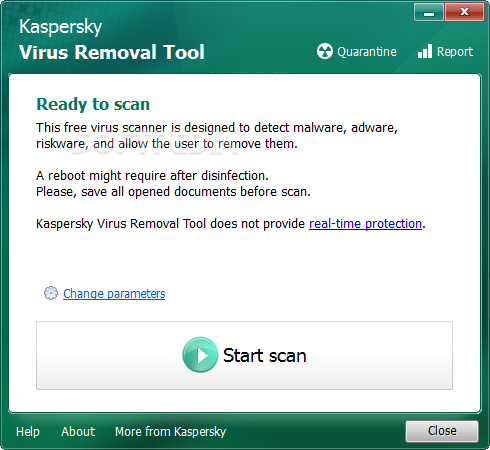
Kaspersky Virus Removal Tool is a smart, portable and Free utility designed to scan and remove all types of Viruses or infections from your computer. This tool has now been updated to latest version 9.0.0.722


Though it does not provides real-time protection to your computer, but can come very handy when your PC is badly infected or on systems without latest databases update.

Highlights
  • Easy interface. 
  • Can be installed to an infected machine (Safe Mode supported). 
  • Integral search and removal of malicious software: effective combination of signature detection and heuristic analyzer. 
  • System Analysis and interactive scripting language.

Note – This tool is not meant to be used as an antivirus solution for everyday use.

Supports: Windows XP (SP2 or higher), Vista (32-bit) & Windows 7 (32/64 bit)

Download Kaspersky Virus Removal Tool 2010  (57.7 MB)

Download Latest Kaspersky Virus Removal Tool v7.0.0.223


Award winning antivirus solution provider, Kaspersky Lab, has released an update to its virus removal tool. The free virus scanning tool, Kaspersky Virus Removal Tool v7.0.0.223 is available for downloading. Kaspersky Virus Removal Tool allows users to enjoy a free online scan of their computer for spyware, malware and viruses. The removal tool will scan the specified locations for any virus threats and remove them or send to Quarantine folder.

Download the latest Kaspersky Virus Removal Tool version 7.0.0.223 via the direct link here.

Remove Antivirus Software easily using Removal Tools

An Antivirus software is the best protection software to safe guard your PC from spyware, virus, Trojan, malware, etc. But at times we need to remove/uninstall a certain Antivirus installed due to some reasons. We can remove them easily using the Add/Remove Programs option in Windows, but many times it becomes difficult to remove them due to certain errors.

Also some processes are left running which causes your computer to slow down. So I have gathered some of Antivirus Removal Tools to easily remove the Antivirus software from your PC.

Norton Removal Tool 


Use the Norton Removal Tool to remove a failed installation or a damaged Norton product. The Norton Removal Tool uninstalls all Norton 2009/2008/2007/2006/2005/2004/2003 products and Norton 360 from computer. Save your Norton Product Key, then download and run the Norton Removal Tool.


AVG Remover


AVG Remover utility removes all parts of AVG installation on your computer, including registry items, installation and user files on your disk, etc. AVG Remover is the least option to be used in case the AVG uninstallation / repair installation process has failed repeatedly.


McAfee Consumer Products Removal Tool


Running McAfee Consumer Product Removal tool (MCPR.exe) removes all 2005, 2006, 2007, and 2008 versions of McAfee consumer products.

Note : McAfee recommends to remove the product from the Remove Programs option in Windows before running the cleanup tool.

Step 1 – Uninstall your McAfee consumer products using Add/Remove Programs in the Windows Control Panel

Step 2 – Download and run MCPR.exe   [ Windows 2000 / XP/ Vista ]


BitDefender Uninstall Tool


This tool will enable users to completely remove Bitdefender antivirus software from their computers. This utility is highly recommended if you use an operating system without the System Restore feature.

Supported versions are: Bitdefender 7.x / Bitdefender 8.x / Bitdefender 9.x / Bitdefender 10 / Bitdefender 11. Download Here


Kaspersky Anti-Virus Remover


If you are having troubles uninstalling Kaspersky products using the standard uninstall method or want to completely uninstall Kaspersky from your computer without leaving traces, Kaspersky Labs provide KAVRemover – A simple to use free utility for complete removal of all Kaspersky Labs products safely.

KavRemover9 supports complete removal of following Kaspersky Products:
Kaspersky Anti-Virus 6.0\7.0\2009
Kaspersky Internet Security 6.0\7.0\2009
Kaspersky Anti-Virus 6.0 for Windows Workstations
Kaspersky Anti-Virus 6.0 for Windows Servers


To use:
Download KAVremover9 >>
Unzip the zip-achieve, and Launch KAVremover9.exe.
Enter the image code from the picture.
Click Remove button to start the process.     

Updated Removal tool for Kaspersky 2010

I’ve found a new updated tool to completely wipe off Kaspersky Antivirus 2010 & Internet Security 2010 from your PC. This tool is very simple, small and doesn’t requires any install. It is very useful when you are encountering errors while deleting Kaspersky product from Add\Remove Programs.


Removal utility allows uninstalling the following products:
Kaspersky Anti-Virus & Internet Security ( 6.0\7.0\2009\2010 )
Kaspersky Anti-Virus 6.0 for Windows Workstations & Windows Servers

Under 64-bit OS’s the removal utility can uninstall Kaspersky Anti-Virus 2009/2010 and Kaspersky Internet Security 2009/2010 only.

In order to fully uninstall the Kaspersky product:
Download the archive kavremover10.zip, Unpack and Run the file kavremover10.exe
Enter the code from the picture, Click the Remove button


Wait until a dialog window informs you of successful product removal. 
Click OK


Reboot your computer


K7 TotalSecurity/K7 AntiVirus Uninstallation Tool

We have previously discussed lot of antivirus software removal tools like that of AVG, McAfee, Kaspersky, Norton, Bit Defender, Avast, Panda, etc.

Now, I’ve found another official tool which lets you completely remove/uninstall K7 TotalSecurity and K7 Antivirus from your computer system. This small tool will completely scan your PC and remove any traces of K7 security software from it.


To use, just run it and Click to scan. Then select Yes in dialog box as shown below.


Download K7 TotalSecurity/K7 AntiVirus Removal Tool  (68 KB)

Subscribe via MAIL

Enter your email address:

Delivered by FeedBurner