.

mob

Tips Inside Moved To New Domain

Showing posts with label Vista tips tricks Tweaks. Show all posts

Sunday, May 16, 2010

How To Recover Data From Scratched Or Damaged Dvds/Cds

Problem is the fact that CDs or DVDs aren’t invulnerable to all types of damage, and in fact, even a small finger print or scratch can make a DVD/CD player not able to read the disk. If you try to copy/paste the file on the damaged disk onto a computer, you usually get an error saying the file is corrupted, or damaged. But I found some really handy programs that can solve such problems, which I thought I’d share with you all today.

Method 1: CD Recovery Toolbox

CD Recovery Toolbox Free was developed for recovering damaged files CD, DVD, HD DVD, Blu-Ray etc. You can use it to restore information lost as a result of some mechanical damage of the disk (scratches, chips, different spots on the surface) or as a result of incorrect recording. This program can recover data that was considered lost.


To recover your data, insert you DVD or CD onto your drive and the CD recovery toolbox will search for the files already present on the disc, select the files you want to recover and press next.


Method 2: Roadkil’s Unstoppable Copier

Roadkil’s Unstoppable Cleaner recovers files from any kind of damaged disk. It allows you to copy files from disks that give ‘corruption‘ errors, and those that are scratched. The program attempts to recover all the parts of the file that are still readable, and ignore the damaged parts. The program is tiny, and it needs no installation, so you can just jump straight in.


Method 3: ISO Puzzle

The goal of ISO Puzzle is to recover as much as possible data of damaged, bad burned or scratched CDs or DVDs.


This version supports only data CDs and DVDs with sector size of 2048 byte – Audio CD, VCD and SVCD are not supported. Before you can start using IsoPuzzle, you’ll need to download WNASPI32.DLL from Nero and place it in the IsoPuzzle’s directory.


Saturday, May 15, 2010

Auto Scan And Connect To Open Wi-Fi Connections [DD-WRT]

AutoAP is an addon for DD-WRT firmware in routers that will continuously scan and connect to the open and pre-defined wireless networks with strongest signal. DD-WRT is a third party firmware that can be installed on the number of supported routers.


With repeated connections to wireless networks, it maintains a continuous connection to the Internet without any loss. The script can only be used if the router is in Repeater Mode, Client Mode, or Client-Bridged Mode.
For the complete list of installation and usage instructions, head over to the AutoAP wiki page.
Download AutoAP

Saturday, May 8, 2010

Prevent Autorun.inf Virus And Clean All Associated Files

Autorun Kicker is a portable freeware that monitors all drives and prevents autorun.inf virus by fighting it and cleaning all associated files. It will alert via system try balloon notification every time an autorun.inf virus is defeated.


The application can be set to launch at startup and can also disable the autorun feature from the system. By default it monitors Local Hard Disks, Removable Media, and Network Drives. You can change which drives to monitor by unchecking the drives that you don’t want to be monitored.


It works on all versions of Windows, including Windows 7. For more, learn how to disable autorun for removable media in Windows 7.

Download Autorun Kicker

Easily Move Windows Between Multiple Display Monitors

In multi-monitor setups, one of the most executed functions is moving windows between the displays. It makes organization convenient and boosts efficiency of work, but what of the irritation of constantly having to drag windows here to there. MonitorSwitch addresses this issue and makes switching windows from one display to another easier and more efficient.

As per the developers description, it “adds two custom buttons in the caption bar of any windows, allowing you to move the window to the next or previous monitor”. However, this did not happen in our test with Windows 7.
What the software did here was add commands to the right-click context menu for any window. We attribute this to the difference between Windows XP and Windows 7 file systems, but found even this solution to be convenient enough.


The new options are added to all the windows, regardless of the program to which they belong, hence improving the entire user experience. You may disable the commands or choose to have the tool start with Windows (under Performance tab) through the application’s control interface.

MonitorSwitch is also compatible with x64 architecture.
Download MonitorSwitch

Friday, May 7, 2010

Run CCleaner To Clean Your System Before Shutdown [Windows]

CCleaner is the best system and web browser cleaning tool out there. Yesterday we covered an app called AutoCleaner which uses CCleaner to clear all web browser history, cache, temp files, etc on close. Here is another trick using CCleaner which will make it run automatically before shutting down the system, but this time it requires no 3rd party app.

Create a desktop shortcut of CCleaner and add the /AUTO /SHUTDOWN after the target. The complete target would become:
"C:\Program Files\CCleaner\CCleaner.exe" /AUTO /SHUTDOWN
To automatically clean up your system before Shutdown, run this shortcut and you are good to go.


This method has been tested to work on our Windows 7 32-bit system. It will work on all Windows OS where CCleaner can run. It is a small but very useful tip for users who have to occasionally clean up all the temporary files before shutting down.

CCleaner Runner Auto Clears Web Browser When Closed

CCleaner is no doubt the best cleaning app out there but one functionality that is missing is to auto clean the browser’s cache, temporary files, history, etc when closed. Many users use CCleaner to clean up their Firefox, Chrome, Opera, Safari, and IE browsers, so why not automate the whole process?

AutoCleaner, also called CCleaner Runner is the first app of it’s kind that monitors web browsers (users can select which browsers to watch), which when closed will automatically launch CCleaner (minimized in system tray) and clean up the browser’s cache, web history, typed URLs, temp files, and more depending on user’s CCleaner setting.
It is a portable tool which sits in the system tray and silently monitors the user-defined web browsers. By default, it watches all browsers supported by CCleaner. To remove a browser from the list, double-click the system tray icon to bring up Preferences, select a browser from the list and hit Delete.


To add a browser back to the list, enter it’s service name, i.e, firefox, not firefox.exe, and hit Enter.
It works on all versions of Windows where CCleaner can run, worked seamlessly on our Windows 7 32-bit system.
Download AutoClean (CCleaner Runner)

XP Style Network Activity Indicator For Windows 7

For almost all users who love Windows 7, we do miss one tiny little feature back from the days of Windows 98 SE’s glory, and up to Windows XP. Remember those two little monitor icons sitting in the system tray, indicating network activity by blinking innocently with traffic transmission? Used to be the easiest way to tell whether you network connection was alive or not.

So, users having nostalgia or just wanting the simplistic ease of having two blinking monitors, Network Activity Indicator will do it for you. This standalone executable does nothing except adding those two monitors back to your system tray. There are a bunch of settings users can tweak, as seen in the screenshot below.


Unlike the original Windows XP utility (that had individual indicators for each interface), this program indicates outgoing and incoming network packets on all available interfaces.
That’s about it. There are no feature-sets to play with or much options to customize. Next time you suspect your network connection is passing out, check these two little monitors before you run an advanced diagnostic. Needless to say, this tool is for Windows 7.
Download Network Activity Indicator

Identify Windows Unknown Devices In Device Manager

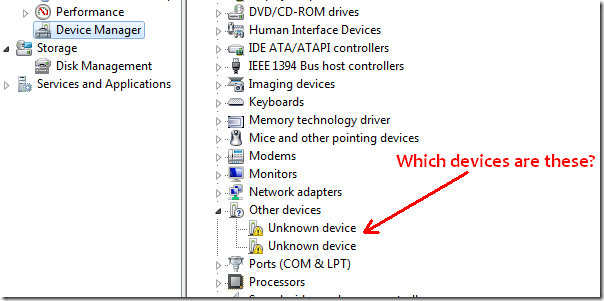
Almost everyone has some unknown devices in the Windows Device Manager, which appears due to lack of driver installation. The biggest headache is to find out which unknown device is it? Most users will blindly install drivers of all devices, hoping that the unknown device will finally get recognized.


UnknownDevices is a small opensource utility which helps administrators quickly identify the actual device who’s driver needs to be installed. In layman’s term, it identifies those “Unknown Devices” that show up after Windows restart and under Device Manager.


It is a portable tool and includes a custom updater as well which needs to be run manually to check for latest updates. Just run the program and it will display all Hardware Devices that are listed as “Unknown Devices” under Device Manager in all versions of Windows, including Windows XP, Windows Vista, and Windows 7.
Download UnknownDevices

How To: Save Energy By Reducing CPU Usage

Granola is a simple Power Management tool which reduces CPU usage slightly to save energy. While not gaming or designing, your CPU still uses more energy than needed when browsing the web or using desktop tools. Do you want your CPU to waste energy while you are browsing GMail or playing a YouTube video? We believe not.

Running Granola requires no technical knowledge, just launch it up and you will be shown the percentage of CPU energy saved. When launched, it automatically

reduces the CPU energy depending on the Settings defined. By default it is set to Medium, i.e, MiserWave, but the slider can be moved from Lowest Speed to Highest Power.

On the main interface, it shows some basic information, such as number of kWh, money, and CO2, that will be saved yearly. You can change the values, currency, reporting, and CO2 units from settings.
Even though it can comes useful, we are skeptical of the way it calculates the saved energy. Also, since it reduces the overall CPU performance (we are not sure if it reduces the GPU energy as well), it left us wondering how it will fare in systems where Adobe Flash Player 10.1 is running and using Hardware acceleration to play H.264 videos. Any thoughts?
Download Granola

Remove 50 Known Fake Antivirus Software From Windows

As computer systems have evolved, so has malware. What used to be just viruses are now trojans, worms, rootkits etc, each bringing some different harm to the system. With increasing security from Antivirus software, malware took a new guise, and started turning up in the clothing of an antivirus software itself.

These new programs infected a computer system easily while the user remained satisfied that their ‘antivirus’ was working perfectly, because most of the times these malicious software would generate false positives to make them believable. They may also prompt a user to purchase an ‘advanced’ version in order to get rid of a rather ‘persistent’ (read:the program itself) infection.
Remove Fake Antivirus was created to combat this particular genre of malware. This program will scan your system for over 50 known fake malware protection tools and remove them. Simply download the file and run it.

The software is portable so no installation is required. It will perform its scan, remove the malware (if present) and prompt you to scan your system with an updated antivirus as well. It will also fix invalid registry entries, folders and files left behind by the malware software.


Some of the popular fake antivirus software that it can remove include:

  • Security Tool

  • Antivirus 7

  • CleanUp Antivirus

  • Security Toolbar

  • Digital Protection

  • XP Smart Security 2010

  • Antivirus Suite

  • Vista Security Tool 2010

  • Total XP Security

  • Security Central

  • Security Antivirus

  • Total PC Defender 2010

  • and many more…

  • The program works with Windows 7 x86 OS build, on which we tested it. It should also work with Windows XP, Vista and 2003.
    Download Remove Fake Antivirus

    Monitor Windows Calendar Appointments From Your Desktop

    One of the best bundled application in Windows Vista was the Windows Calendar. With its wonderful syncing abilities, flexibility and ease of use, it was a top choice amongst users, and the decision to take it off in Windows 7 was certainly not well received. Time Keeper is a sidebar gadget for Windows Vista and 7 that relies on Windows Calendar, and brings a neat feature to your desktop.

    Basically, Time Keeper gadget displays the current time and date, and shows the latest 4 upcoming appointments from Windows Calendar right on the desktop.


    You can hover the mouse over any visible appointment to highlight it and see the details (if any) in a pop-up balloon. The gadget also allows one-click access to opening the Calendar application by clicking the dot icon next to date.
    Within the gadget’s settings you can control the time format, choose to have a sound played 15 minutes before before the next appointment and change backgrounds. There are 35 different backgrounds available to be chosen from.
    Time Keeper gadget is basically for Windows Vista, since it requires Windows Calendar to become useful. However, if you’re running Windows Calendar on Windows 7, the gadget will serve you just as well.
    Download Time Keeper

    Free PDF Document Storage For Small Or Home Office

    PDFKeeper is an opensource software that allows safe PDF document storage, indexing, and retrieval. It requires the free Oracle Database Express Edition, also called Oracle Database XE, and is only useful if you want to deploy a storage system in small or home office.

    Before you install this software, you will need to install Oracle Database 10g Express Edition (10.2.0.1) Server (Universal) on the system that will host the database, install Oractle Database 10g Express Client (10.2.0.1) on any systems that will connect to the database remotely, and install Open Object Rexx 4.0.0 on any system that will have the client-side components (Search and Summary Editor) installed.


    It provides a dead-simple interface to index and search the pdf documents. I was not able to deploy it since it requires a server and multiple computers. The screenshots below have been taken from developer’s page.


    It works on Windows XP, Windows Vista, and Windows 7.
    Download PDFKeeper

    Face Recognition Software To Login [Windows]

    Impressive it was to see in movies how some high-tech system will recognize a user’s face and present a personalized interface. Thanks to the advancements in technology, we see face recognition systems in some high-profile offices as well. But how about having a similar system on your laptop or PC, which would just scan your face and log you in?

    Blink from Luxand is a software that does exactly that, and that too for free. The software uses your webcam to read a face, match it against a pre-stored collection of users and log in the right account. Slick and neat.


    Once the software is installed, you need to to configure it, which involves having Blink learn your face and remember it. Setting everything up is simple and easy and does not take more than a couple of minutes. Once this is complete, the software simply goes down to the system tray where it will continue to run. You may also access settings from the tray icon.
    Next time you’re logging into Windows, Blink with automatically enable your webcam and get ready for login. Just sit normally in front of the camera and you’re logged in, no passwords needed.
    Blink’s recognition algorithm also compensates for changed hairstyles, glasses or contact lenses. It also keeps tabs on who logged in when, and stores a complete Login history with captured images to catch potential identity thieves, and to keep a record of activity. These are accessible through Settings.


    Blink works with Windows Vista and 7 only, 32-bit versions. Its memory signature weighs in at approximately 30 MB. Although obvious, it also needs a PC-cam or webcam to work.
    Download Blink

    [via DownloadSquad]

    How To Protect USB Drive From Virus When Attached To Infected Computer

    Have you ever attached a USB to a computer and later found out that the drive is infected by a virus? I have definitely faced this situation many times. If you attach your USB drive to the infected computer the virus is transferred to the drive in no time infecting all the important documents in USB drive too, depending on the nature of the virus you may loose important data from the USB drive and never recover them back. But there is a solution to protect your USB drive from virus infection when it is connected to already infected computer.

    If you make your USB drive into non writable mode then any kind of data can’t be written to it which means that if a virus infected computer is going to transmit any virus to drive, it won’t be able to because USB drive is write protected.

    Write Protect Switch


    Certain USB flash drives comes with write protector switch in them, using which you can write protect the USB flash / pen drive or make them read only drives. If the write protect feature is missing in the USB flash / pen drive then you can use USB Write Protector utility.

    ThumbScrew

    Thumbscrew is a freeware application that lets you write protect your USB drive so that virus, Malware, Trojan or any kind of infection from host computer would not be able to write anything on your USB.


    Now right click the system try icon and choose  Make USB read only. This would make the USB drive write protected which makes it completely protected from infections to to spread onto your drive.

    USB Write Protector

    USB Write Protector is another free utility that allows you make write protect your USB flash / pen drives just like Thumbscrew mentioned above. This is a very small utility that you can always carry with you in your portable drive.


    By these applications your pen drive would be protected on that shared system but it is still recommended for you to use a quality antivirus software, and keep it updated regularly.

    Protect USB Flash Drive from Virus with Fake Dummy File

    USB Flash Drive is a tiny useful device that is used ubiquitously nowadays because of its small siz, make it easyfor mobile people to bring along virtually everything (digital) with them. With the space capacity grows exponentially, inversely proportional to its price, it becomes a mundane device for everyone to have. One thing that boggles users is virus or malicious script that can easily bind itself to the device and infect most of its content.


    In this post I will show you how to protect your pen drive by creating fake dummy file. The idea here is to cheat virus so that it "sees" our pen drive is already full, so it will not be able to write itself. In order to do that you first need to check the exact free space on your pen drive. Right click on the pen drive and select "properties".


    With the information obtained, you need to type in the following line of code. Change your drive letter and USB flash drive space (in byte) accordingly.
    fsutil file createnew F:\DummyFile 7168172032

    You are done if you are using windows XP. Your pen drive should be safe from virus. Unfortunately, Windows Vista users need to take additional step because of its tight security. You need to make sure that FSUTIL gets full administrator privilege before you could successfully run the command.
    Alternative method
    If you don't want to mess up with the command and Vista tight security, you can use some applications that can do the job on the fly.
    Dummy File Creator

    With dummy file creator you can fill up each and every single byte in your pen drive. It takes a few minute to complete creating the dummy file especially if the size is in the region of gigabytes.
    Download link
    Just google for "dummy file creator" and you will find many similar tools like NOD32 Dummy File Creator.

    Thursday, May 6, 2010

    Virus blocking websites during surfing

    •    windowsupdate
    •    wilderssecurity
    •    threatexpert
    •    castlecops
    •    spamhaus
    •    cpsecure
    •    arcabit
    •    emsisoft
    •    sunbelt
    •    securecomputing
    •    rising
    •    prevx
    •    pctools
    •    norman
    •    k7computing
    •    ikarus
    •    hauri

    •    hacksoft
    •    gdata
    •    fortinet
    •    ewido
    •    clamav
    •    comodo
    •    quickheal
    •    avira
    •    avast
    •    esafe
    •    ahnlab
    •    centralcommand
    •    drweb
    •    grisoft
    •    eset
    •    nod32
    •    f-prot
    •    jotti
    •    kaspersky
    •    f-secure
    •    computerassociates
    •    networkassociates
    •    etrust
    •    panda
    •    sophos
    •    trendmicro
    •    mcafee
    •    norton
    •    symantec
    •    microsoft
    •    defender
    •    rootkit
    •    malware
    •    spyware

    Weak password list (Rejected from most of websites & still commonly using as computer password

    99999999
    9999999
    999999
    99999
    88888888
    8888888
    888888
    88888
    8888
    888
    88
    8
    77777777
    7777777
    777777
    77777
    7777
    777
    77
    7
    66666666
    6666666
    666666
    66666
    6666
    666
    66
    6
    55555555
    5555555
    555555
    55555
    5555
    555
    55
    5
    44444444
    4444444
    444444
    44444
    4444
    444
    44
    4
    33333333
    3333333
    333333
    33333
    3333
    333
    33
    3

    22222222
    2222222
    222222
    22222
    2222
    222
    22
    2
    11111111
    1111111
    111111
    11111
    1111
    111
    explorer
    exchange
    customer
    cluster
    nobody
    codeword
    codename
    changeme
    desktop
    security
    secure
    public
    system
    shadow
    office
    supervisor
    superuser
    share
    super
    secret
    server
    computer
    owner
    backup
    database
    lotus
    oracle
    business
    manager
    temporary
    ihavenopass
    nothing
    nopassword
    nopass
    Internet
    internet
    example
    sample
    love123
    boss123
    work123
    home123
    mypc123
    temp123
    test123
    qwe123
    abc123
    pw123
    root123
    pass123
    pass12
    pass1
    admin123
    admin12
    admin1
    password123
    password12
    password1    9999
    999
    99

    9
    11
    1
    00000000
    0000000
    00000
    0000
    000
    00
    0987654321
    987654321
    87654321
    7654321
    654321
    54321
    4321
    321
    21
    12
    fuck
    zzzzz
    zzzz
    zzz
    xxxxx
    xxxx
    xxx
    qqqqq
    qqqq
    qqq
    aaaaa
    aaaa
    aaa
    sql
    file
    web
    foo
    job
    home
    work
    intranet
    controller
    killer
    games
    private
    market
    coffee
    cookie
    forever
    freedom
    student
    account
    academia
    files
    windows
    monitor
    unknown
    anything
    letitbe
    letmein
    domain
    access
    money
    campus
    default
    foobar
    foofoo
    temptemp
    temp
    testtest
    test
    rootroot
    root
    adminadmin
    mypassword
    mypass
    pass
    Login
    login
    Password
    password
    passwd
    zxcvbn
    zxcvb
    zxccxz
    zxcxz
    qazwsxedc
    qazwsx
    q1w2e3
    qweasdzxc
    asdfgh
    asdzxc
    asddsa
    asdsa
    qweasd
    qwerty
    qweewq
    qwewq
    nimda
    administrator
    Admin
    admin
    a1b2c3
    1q2w3e
    1234qwer
    1234abcd
    123asd
    123qwe
    123abc
    123321
    12321
    123123
    1234567890
    123456789
    12345678
    1234567
    123456
    12345
    1234
    123

    CD Eject Tool

    CD Eject Tool is a utility that manages your CD Drive doors. It allows you eject and close the CD Drive door by using a hotkey, desktop shortcut, or via an icon in your system tray. It will automatically close the door within a couple of seconds if you have chosen the action Get CD. The program creates a separate icon in your system tray for each CD Drive, so you can control (eject, close,.. etc.) any drive door by clicking on the appropriate icon.
    CD Eject Tool Eject/Close your CD Drives:
    • via tray icons
    • via desktop icons
    • by using hotkey
    Control your CD Drives:
    • lock/unlock CD Drive door
    • suppress/disable autorun
    • run autorun at any time
    Download CD Eject Tool
    CD Eject Tool are very convenient if, say, you have your computer under the desk and CD Eject button is close to Reset...

    Features of CD Eject Tool

    • manage autorun (without reboot)
    • fast check an update is available
    • start autorun at any time from menu
    • show CD property in tray icon tips
    • you can create icon on Desktop for eject, close, Get CD actions
    • different icons for full, empty, open and close CD Drive
    • eject or close a door when Windows shuts down
    • lock CD drive door
    • timer for system shutdown

    Thursday, April 22, 2010

    Fix Transparent or Invisible Desktop Icon Text After Installing DreamScene in Windows 7

    Windows DreamScene, or animated desktop background feature, is no longer supported in Windows 7. However, there is hack to install DreamScene in Windows 7 by copying over the program files and registry keys from Windows Vista.

    However, after enabling DreamScene and set a video clip to be the motion desktop background, the text of desktop icons will vanish, or become transparent and invisible, leaving only the text’s shadow visible. To fix and resolve the desktop icons’ text not visible, hidden or transparent issue, follow these steps:

    1. Right click on Desktop, and select Personalize.
    2. Switch back to default Windows 7 Aero Theme. The desktop background will be reset to default wallpaper.
    3. Set the video clip as DreamScene motion desktop background again. The desktop icons’ text will remain visible in white color font.
    Alternative method:
    1. Right click on Desktop, and select Personalize.
    2. Go to Desktop Background section at the bottom.
    3. Under Picture Position drop down menu, select Fill.
    4. Click on Save changes button. The desktop background will be reset to default wallpaper.
    5. Set the video clip as DreamScene motion desktop background again. The desktop icons’ text will remain visible in white color font.

    Tuesday, April 20, 2010

    Registry key for No Extension Files with always Open With Notepad

    procedure to do the tricks..
    1. first open the notepad
    2. copy the following code and paste 
    3. now click save as the file NAME.reg file.... that is the file name format must be in .reg format.. the default notepad file format is .txt
    Copy the following code

    Windows Registry Editor Version 5.00
    
    [HKEY_CLASSES_ROOT\*\shell]
    
    [HKEY_CLASSES_ROOT\*\shell\open]
    @="Open With Notepad"
    
    [HKEY_CLASSES_ROOT\*\shell\open\command]
    @="notepad.exe %1"
    
    [HKEY_CURRENT_USER\Software\Microsoft\Windows\CurrentVersion\Explorer\FileExts\.]
    "Application"="Notepad"


    Subscribe via MAIL

    Enter your email address:

    Delivered by FeedBurner